
You’re about to take a photo at dinner. Your kid makes a face. Your dog does something ridiculous. You open your camera, tap the button, and then your phone hits you with the message nobody wants to see:
Storage Full.
Now the moment is gone, and you’re stuck choosing between old screenshots, blurry photos, and ten near-identical shots you forgot to delete.
If your phone has thousands of photos, the problem can feel huge. Most people freeze, then keep paying for extra cloud storage month after month just to avoid dealing with the mess.
Here’s the good news: you do not need to clean your whole camera roll today. You just need one easy win.
Duplicate photos are often the fastest place to start. In many cases, your phone already groups them for you, which means you can clear space without digging through years of memories by hand.
Quick Answer
If you want the fastest fix, start here:
- iPhone: Open Photos → Collections → Utilities → Duplicates → tap Merge
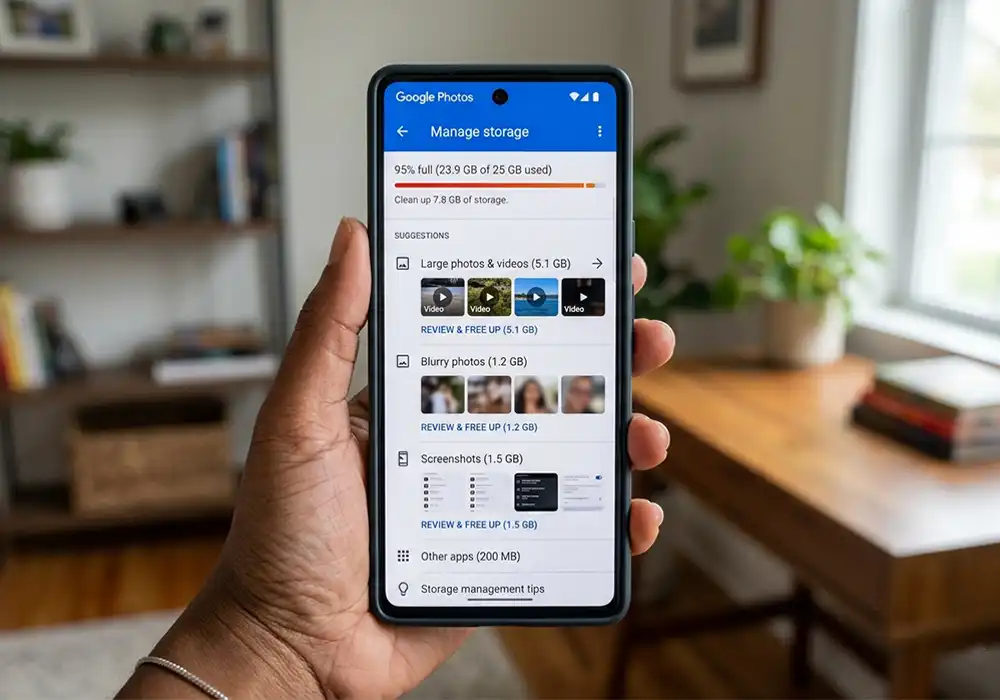
- Android: Open Google Photos → Profile icon → Photos settings → Backup → Manage storage
If you only have 10 minutes, this is one of the easiest cleanup jobs to tackle.
Why Your Phone Fills Up So Fast
This is not because you are lazy or bad with technology. Your phone simply collects more than you realize.
Common photo clutter includes:
- burst shots
- repeated attempts to get one good photo
- screenshots you meant to revisit
- images saved from messages and apps
- duplicate downloads
- blurry copies you forgot to remove
That clutter builds quietly. Then one day your phone is packed, and you are paying monthly to store screenshots, memes, and accidental pocket photos.
A little dramatic? Maybe. But also painfully true.
How to Delete Duplicate Photos on iPhone
If you use an iPhone, cleanup is simple.
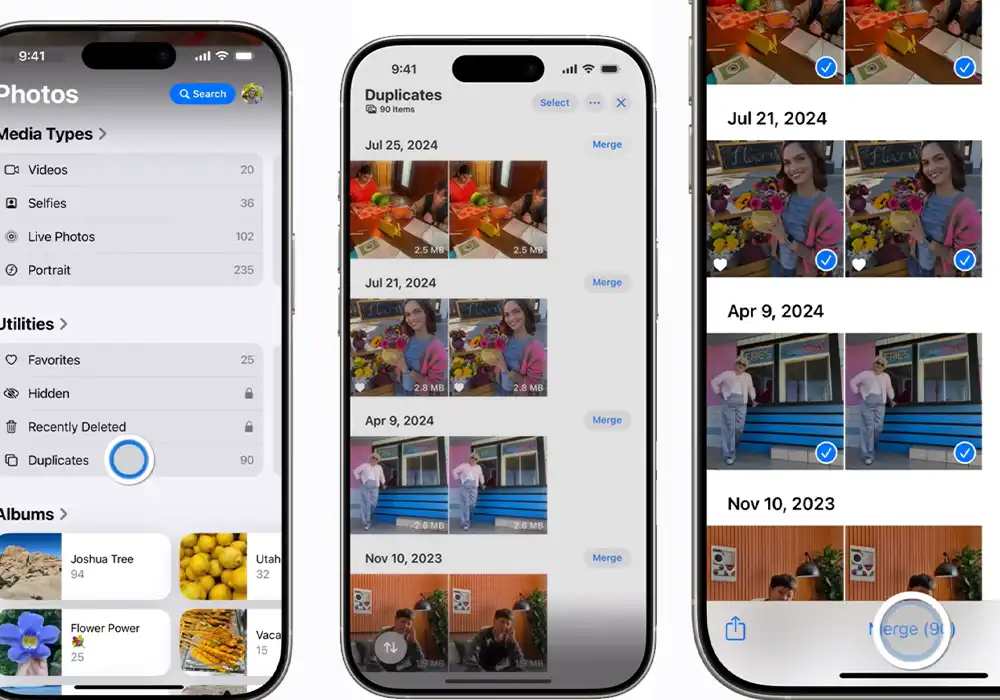
Step-by-Step
- Open the Photos app
- Tap Collections
- Scroll down to Utilities
- Tap Duplicates
- Tap Merge next to a duplicate set
- Confirm the merge
What Merge Does
When you tap Merge, your iPhone keeps one best version of the photo and removes the extra copies.
That means you keep the memory, but lose the clutter.
If You Don’t See the Duplicates Folder
Do not panic. Your phone may still be scanning your library, or it may not have found duplicates yet.
In other words, no need to throw the phone out a window.
How to Clean Up Similar Clutter on Android
Android cleanup can look a little different depending on your phone brand, gallery app, and Google Photos version.
In Google Photos
- Open Google Photos
- Tap your profile picture
- Tap Photos settings
- Tap Backup
- Tap Manage storage
From there, you may see cleanup suggestions for large items, old screenshots, and other space-hogging files.
Important Note
Android does not always have one clear Duplicates section like iPhone. On some devices, you may need to review storage suggestions or use your gallery app’s cleanup tools.
That part is less “tap once and smile” and more “poke around like a detective.”
Will Deleting Duplicate Photos Delete Them Everywhere?
Sometimes, yes.
If your photos sync with cloud storage, deleting or merging them may also affect what you see on your other devices.
Before you start, check:
- whether cloud sync is turned on
- whether you share the account with anyone else
- whether deleted photos go to a Recently Deleted or Trash folder first
This quick check can save you a nasty surprise later.
The 10-Minute Duplicate Photo Cleanup Plan
If the idea of cleaning your photo library feels heavy, try this instead:
Minute 1
Open your photo app and go straight to the duplicate or storage cleanup area.
Minutes 2 to 8
Delete or merge:
- exact duplicates
- accidental repeats
- blurry copies
- old screenshots you do not need
Minutes 9 to 10
Stop.
That is enough.
You do not need to turn this into a three-hour project. A short pass is still progress, and progress beats guilt every time.
How Much Space Can Duplicate Photos Free Up?
That depends on how messy your library is.
If your camera roll is packed with:
- burst shots
- repeated downloads
- message attachments
- screenshots
- copied images
…then even a short cleanup can free up noticeable space.
The bigger win is what happens next:
- fewer Storage Full pop-ups
- less stress before trips and events
- less pressure to buy more storage again
You stop paying rent for digital junk. That is the dream.
What to Delete After Duplicates
Once duplicates are gone, these are the next easy targets:
- Screenshots
- Large videos
- Downloads
- Forwarded images
- Blurry burst shots
This is usually where your phone starts to feel lighter.
Should You Use a Duplicate Photo Cleaner App?
Maybe.
A third-party app can help if:
- your built-in tools miss similar-looking photos
- your Android phone has no clear duplicate cleanup feature
- you want a faster swipe-to-delete process
But be picky.
Before downloading any cleanup app:
- read recent reviews
- check app permissions
- avoid apps that ask for too much access
- test it with a small batch first
Built-in tools are usually the safest place to start.
FAQ: Duplicate Photos and Phone Storage
Does merging duplicate photos on iPhone delete the best version?
No. It keeps one best version and removes the extra copies.
Why can’t I see the Duplicates album on iPhone?
Your phone may still be scanning your library, or it may not have found any duplicates yet.
Does Android have a duplicate photo folder like iPhone?
Not always. It depends on the phone, app version, and gallery setup.
Will deleting photos free up cloud storage?
It can, especially if your photos sync with a cloud account.
What is the safest way to start cleaning up photos?
Start with exact duplicates first. They are the easiest and lowest-risk cleanup.
You Do Not Need to Clean Everything Today
You do not need a perfect camera roll.
You just need a little space back.
If you spend 10 minutes removing duplicate photos, you can clear clutter, free some storage, and make your phone easier to use without touching the memories that matter most.
That is a good win for one day.
Want to keep this feeling going? If you liked this quick 10-minute win, you’ll love my 15-Minute Phone Rescue Checklist. It’s a simple, printable guide that shows you the exact next 3 things to tap to make your phone feel brand new again. Enter email, I’ll send it straight to your inbox!
The 15-Minute Phone Rescue Checklist
Send download link to: