

You already know the feeling. Your phone buzzes constantly, your email inbox shows thousands of unread messages, and your computer desktop looks like a tornado hit it. Digital clutter quietly piles up in the background, and unlike the physical mess you can see right in front of you, it keeps growing until it starts costing you real time and focus.
The key takeaway most people miss is this: digital clutter is not just an organization problem. It slows your devices, fragments your attention, and drains your productivity far more than most people realize.
The good news? Building a digital declutter routine that actually sticks is completely achievable.
I’ll walk you through setting clear goals, picking the right tools, cleaning up your devices and email inbox, streamlining your social media accounts, and setting up a maintenance routine that keeps everything under control for the long haul.
Key Takeaways
- Define your purpose first, then focus on key areas like your smartphone, email inbox, and computer files to make your decluttering efforts count where it matters most.
- Use cloud storage, password managers, and automation tools to organize files, protect your accounts, and cut down on manual work.
- Apply the three-month rule by deleting or archiving files you haven’t touched in 90 days to keep your devices clean and running fast.
- Schedule weekly five-minute sweeps and a monthly decluttering session to stop digital clutter from piling up again over time.
- Track your progress with a bullet journal, celebrate small wins, and build habits by linking decluttering tasks to routines you already follow every day.
Set Clear Goals for Your Digital Decluttering Routine

Before you start your digital declutter, you need to know your purpose. Picking which areas matter most to you, whether that’s your phone, email, or computer files, helps you focus your time management efforts where they’ll do the most good.
Define your purpose
Start by identifying why you want to clean up your digital life. Your purpose shapes every decision you make during the digital reset. Common reasons people start this process include:
- Gaining ease and accessibility with their files and apps
- Cutting down on distractions that steal their focus throughout the day
- Reducing stress from constant notifications and endless scrolling
Think about what matters most to you. Do you want to reclaim time lost to mindless browsing? Does digital clutter slow down your devices? Clarify your main goal before you take any action. This clarity acts as your compass throughout the entire process.
Your purpose also guides which areas need the most attention. If productivity is your goal, start with your email inbox and browser extensions. If digital minimalism is what you’re after, begin with your smartphone apps and social media accounts.
Courtney Carver and other experts in digital wellbeing stress that a well-defined purpose is the key to success. Your feelings of ease and accessibility depend on knowing exactly what you want to achieve.
Write down your specific goals. Make them real and measurable. This foundation helps you stay consistent and builds lasting habits for long-term success.
Prioritize key areas of focus
Once you know your purpose, focus your energy on the areas that matter most. Tackling everything at once creates overwhelm. Attack one problem zone at a time instead.
- Examine your smartphone first. Digital distractions from too many notifications drain your attention every single day. Most people spend hours on their phones, so app organization and notification settings are critical starting points for phone decluttering.
- Assess your email inbox next. An overflowing inbox makes it hard to find important messages. Unsubscribe from unnecessary lists and set up folders and filters to regain control of your Gmail or other email platform.
- Evaluate your computer desktop and file storage systems, including OneDrive, Google Drive, iCloud, and Dropbox. According to a 2026 report by AgilityPortal, employees waste 4 to 6 hours per week just searching for scattered digital files, messages, and updates. That’s nearly a full workday you get back each week simply by organizing your files properly. Remove duplicates, clear outdated content, and build a simple filing system with consistent naming conventions.
- Review your social media accounts to cut down on information overload and mental clutter. Curate your follows, clean up the accounts you engage with, and adjust notification settings across every platform you use.
- Clean up your web browser by organizing bookmarks, removing unused extensions, and managing saved passwords through a password manager. Multiple open tabs and a cluttered bookmarks bar slow your productivity and drain your mental energy throughout the day.
- Identify which digital tools you actually use versus which ones just sit on your devices. The three-month rule helps you spot files and apps you no longer need, freeing up space and cutting your environmental footprint by reducing energy consumption at data centers.
Prioritize the areas that cause you the most stress or distraction. Your habit trackers and bullet journals can help you measure which zones drain your focus most, so you know exactly where to invest your effort first.
Essential Tools to Simplify the Process

You need the right tools to make digital decluttering easier and faster. Cloud storage solutions, password managers, and automation tools help you organize everything without spending hours on tedious work.
Cloud storage solutions
Cloud storage is the backbone of a solid digital declutter routine. Services like Google Drive, Dropbox, and OneDrive sync your files across all your devices automatically. Your smartphone, tablet, and computer desktop stay connected without any extra effort.
Cloud services let you recover older file versions, so you can restore something you deleted by mistake. They also shrink your digital carbon footprint by eliminating the need for multiple physical storage devices. Setting up cloud backups takes just minutes, but it protects your important documents, photos, and digital products from loss.
Organize your files in the cloud using consistent naming conventions and a simple folder structure. Archive old messages and outdated files to cloud storage instead of keeping them cluttering your iPhone and other devices. This strategy frees up local space while keeping everything accessible.
The best digital product is one that serves you, not the other way around. – Inspired by principles of digital minimalism and intentional technology use.
Your digital literacy grows as you get comfortable with how cloud services work for your specific needs. Make cloud storage part of your weekly five-minute sweep to maintain order and prevent clutter from creeping back.
Password managers
After you organize your files in cloud storage, you need to protect the passwords that unlock everything. A password manager stores all your login credentials in one secure location. You only need to remember one master password to access all your accounts.
The best password managers encrypt your data so hackers cannot access your information. They work across all your devices and keep your sensitive details safe.
To strengthen your security, start with a password audit:
- Open your password manager and search for any passwords you’ve used across multiple accounts
- Replace duplicate passwords with strong, unique ones that include uppercase letters, numbers, and symbols
- Enable two-factor authentication on every account that offers it as an extra layer of protection
This step matters more than most people realize. According to a May 2026 analysis of 19 billion leaked passwords by cybersecurity firm Bright Defense, 94% of those passwords were reused or duplicated. That number makes a compelling case for never using the same password twice. Auditing your password manager is an essential step in building a digital minimalistic lifestyle and a complete digital declutter checklist.
Automation tools
Automation tools save you real time during your digital declutter. AI technology can organize your files and folders automatically by detecting duplicates and suggesting smart folder structures. These tools scan your devices, flag files you no longer need, and run in the background while you focus on other tasks.
Here’s where automation makes the biggest difference in your digital life:
- File organization: AI detects duplicates and moves old files to archives on a schedule you set
- Email filtering: AI sorts spam and prioritizes important messages as your inbox learns your habits
- Social media cleanup: automation can delete old posts and manage privacy settings across platforms
- Task and calendar management: automated reminders cut down on digital noise throughout your day
Email management becomes effortless with automation. These systems learn your habits over time and get better at sorting. By using these tools, you reduce carbon emissions from unnecessary data storage and build your digital and genai literacy. The fuzzy and the techie approach, combining human judgment with machine efficiency, gives you the best of both worlds in your decluttering process.
Declutter Your Devices

Your phone, tablet, and computer hold tons of digital clutter that slows you down every day. Clean them up and you’ll work faster and feel less stressed about your digital life.
Organize your smartphone apps
Organizing your smartphone apps cuts digital clutter and saves time every single day. A clean phone interface boosts productivity and reduces distractions from apps you don’t actually need.
- Open your phone and review each app on your home screen. Delete anything you haven’t used in three months or longer.
- Ask yourself whether each app serves a real purpose in your daily life, or if it just takes up space on your device.
- Keep frequently used apps visible on your home screen. Place less important ones in folders at the bottom.
- Create folders for similar apps, grouping social media, productivity tools, and entertainment separately for easier navigation.
- Set up automation tools to manage app notifications, turning off alerts from apps that don’t need your immediate attention.
One focused cleanup session delivers immediate results. Starting with 48 installed apps and 12 apps pushing notifications, you can remove 14 apps, move 10 into folders, and disable notifications for 9 nonessential apps in just 30 minutes. Your phone feels lighter right away, and you only see meaningful alerts going forward.
From there, a weekly five-minute sweep catches reinstalled apps before they pile up again. Also spend a few minutes reducing your active contacts to only essential people, deleting old messages like verification codes, and pinning your most-contacted people at the top of your messaging app.
Clean up your tablet
Your tablet stores files and apps that slow down performance over time. A focused cleanup frees up space and improves speed noticeably.
- Delete large video files you no longer watch to clear storage for new content.
- Remove books and documents you finished reading months ago.
- Uninstall apps you rarely open or haven’t touched in three months.
- Organize remaining apps into folders by category, such as productivity, entertainment, or social media.
- Review your photo library and delete blurry images, duplicates, and screenshots you no longer need.
- Clear your tablet’s cache and temporary files through the settings menu to boost performance.
Check your downloads folder and remove files you already transferred to cloud storage or your computer. Disable auto-play features on social media apps to reduce data usage and distraction. Turn off notifications from games and other apps that interrupt your focus. Set a reminder to repeat this cleanup every three months for ongoing maintenance.
Tidy up your computer desktop
After organizing your tablet, you tackle the largest screen in your digital life. A clean desktop boosts focus and makes finding files significantly faster.
- Create desktop categories like “Work in Progress” to sort icons and cut visual clutter immediately.
- Pin frequently used software to your taskbar or dock instead of scattering shortcuts across the desktop.
- Delete files you downloaded months ago that you no longer need for current projects or tasks.
- Rename files right when you download them to avoid confusion and maintain clarity across your system.
- Move documents into a single folder that you empty weekly using a minimalistic approach.
Organize screenshots into a dedicated folder rather than letting them pile up on your main screen. Remove shortcuts for programs you rarely open and access them through your applications menu instead. Use consistent file naming conventions across all documents and apply the three-month rule to anything you haven’t opened since that timeframe passed.
Manage Digital Files and Folders
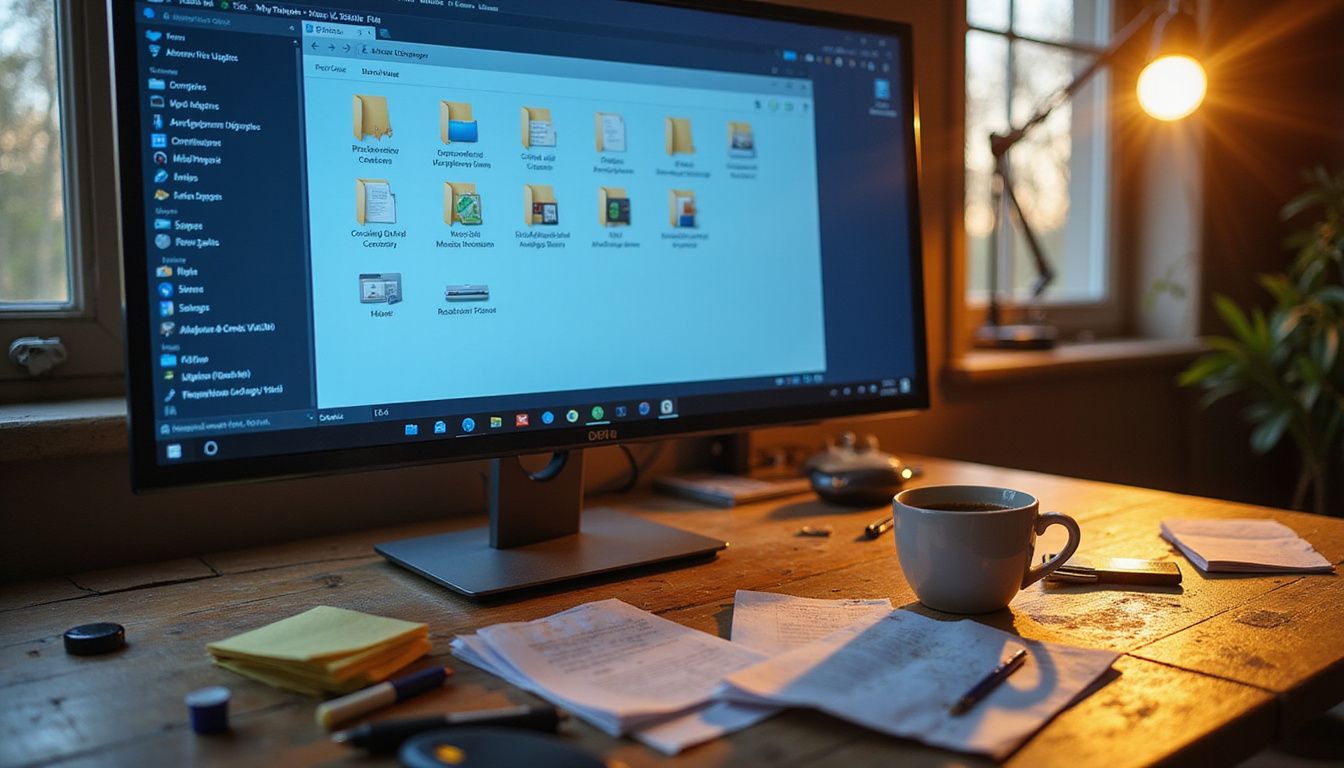
Your digital files need a system that works for you. You organize your folders the same way every time, name your files consistently, and remove what you no longer use. Here’s how to make that system stick for good.
Create a simple filing system
Start by organizing your digital files into broad categories. Create main folders like “Work,” “Personal,” and “Archive.” This structure mirrors how Tammy Strobel and other digital organization experts recommend managing your employability documents and personal records.
Within each main folder, build specific subfolders like “Invoices,” “Reports,” “Photos,” and “Vacation Plans.” This approach cuts digital clutter and helps you find what you need fast.
A “Current Tasks” subfolder inside your “Work” folder keeps active projects separate from completed ones. Moving finished files to a quarterly archive folder, such as “Archive Q1” for January through March, prevents your active workspace from becoming overwhelming.
Consistent file naming makes searching easy too. Use dates and descriptive words like “2024-01-15-ClientProposal” instead of vague names like “Document1.” Lightroom users and other professionals managing large photo collections apply this same principle to their digital assets. Taking control of your file structure, the way the Art of Manliness describes owning your space, gives you that sense of control immediately and makes the whole system sustainable.
Use consistent file naming conventions
A solid filing system gives you a strong foundation. Your naming system builds on that foundation and makes everything easier to find.
Adopt a consistent convention, such as “2023_Budget.xlsx,” to cut down search time and streamline file retrieval. This method works across all your devices and folders.
Manage multiple versions by labeling them clearly, like “ProjectXYZ_v2,” and rename the final version to “ProjectXYZ_Final.” This prevents confusion when several drafts exist. Your team members understand the file status at a glance. Digital literacy experts at the University of Bath emphasize how proper naming systems boost productivity and reduce errors significantly.
Start with one project folder. Apply your naming rules to every file you create from that point forward. This habit sticks faster than you might expect, and soon you won’t think twice about it.
Remove duplicate or outdated files
Duplicate files waste storage space and slow down your devices. You need a system to find and remove them efficiently.
- Use AI tools to scan your computer and identify duplicate photos and videos automatically. These tools remove exact copies and categorize files based on their content.
- Sort outdated files into a separate folder instead of deleting them immediately. This prevents you from getting stuck on tough decisions mid-session.
- Apply the Three-Month Rule to any file you haven’t opened in 90 days. Move those items to archive storage or an external drive.
- Check your downloads folder every week for files you no longer need. Delete installation files after you finish setting up software.
- Review documents from past projects and remove versions you no longer use. Keep only the final version of each important file.
- Set up automation tools to flag duplicate files monthly. These tools keep your storage clean without requiring extra effort on your part.
A three-step automation workflow can cut manual sorting time dramatically. First, run an automated scan using file hashes to identify exact duplicates. In one cloud folder with 5,000 files, this scan identified 1,280 duplicates. Second, move files not opened in 90 days to an archive folder, which relocated 1,050 items in one real-world example. Third, generate a monthly duplicate report that flags new duplicates, catching 42 additional files in the first month alone. Running this workflow keeps your storage lean and makes file management sustainable over time.
Declutter Your Email Inbox
Your email inbox fills up fast. Take control of it to reduce digital clutter and improve your focus, much like how Catherine Price and Christina Crook teach people to reclaim their attention from constant digital noise.
Unsubscribe from unnecessary lists
Email newsletters pile up fast and waste your time. Unsubscribing from lists you rarely read is one of the quickest wins available in your digital declutter.
- Open each newsletter you receive and look for the unsubscribe link at the bottom. Click it immediately if the content doesn’t match your interests.
- Identify newsletters you read rarely and remove yourself from those mailing lists right away. Track which emails you actually open to spot the ones to cut.
- Make unsubscribing a habit the moment irrelevant emails arrive. The occasional missed deal is worth the time you save by staying focused.
- Sort through current subscriptions and list candidates for removal. Start with newsletters you haven’t opened in the last month or two.
- Set up filters for newsletters you want to keep but don’t need to see right away. Archive them automatically so they don’t clutter your main inbox view.
- Use email management tools to bulk unsubscribe from multiple lists at once. Many services now offer one-click removal from several newsletters simultaneously.
Bulk unsubscribing delivers measurable results fast. Reviewing 2,400 emails over a 90-day period can reveal 310 unique mailing lists. Unsubscribing from 220 of those lists reduces incoming promotional emails by 73% over the next 30 days. Cutting subscriptions by two-thirds turns your inbox from noisy to usable in under an hour, and archival rules keep the main view focused going forward.
Organize with folders and filters
Folders and filters turn your inbox into an organized system that saves you time every day. You automate how messages arrive and stay on top of what matters most.
- Create specific folders like “Pending Action,” “Bills,” and “Reading” to sort active emails and reduce inbox clutter.
- Set up rules in your email client for automatic sorting into folders for social media, memberships, and newsletters.
- Use filters to redirect newsletters to a “Reading” folder automatically, freeing up your main inbox for what matters.
- Flag work queries using filters that highlight urgent messages and separate them from routine communications.
- Apply filters that automatically sort incoming messages based on sender, subject line, or keywords relevant to your digital and genai literacy goals, embracing the joy of missing out on digital noise.
Organize folders by how often you use them, placing your most-accessed ones at the top. Use consistent naming conventions across all folders so you find messages quickly. Archive old messages regularly to keep active folders lean and focused on current tasks. Test your folder and filter system weekly to make sure rules are working correctly.
Delete or archive old messages
You need a system to handle old emails that pile up in your inbox. Archiving and deleting messages keeps your email clean and your mind focused.
- Sort emails into three groups: save, respond quickly, or decide later. This helps you act on messages that matter most first.
- Move emails that need more thought into a separate folder for later review. This keeps urgent items from getting buried.
- Use your email’s archiving function for messages you may need later. Archived emails stay searchable but leave your inbox clear.
- Delete promotional emails and newsletters you no longer read. Unsubscribing first stops new ones from arriving tomorrow.
- Set a monthly date to review and clean old messages. Doing this on the same day each month makes it a real habit.
- Archive emails older than three months that you haven’t touched. The Three-Month Rule helps you clear clutter without losing important data. It’s worth noting that according to 2025 data from The Carbon Literacy Project and AgainstData, a short email produces roughly 0.3g of CO2e, and a long email with an attachment can generate up to 50g of CO2e. Permanently deleting large, old messages rather than just archiving them is a simple way to shrink your digital carbon footprint.
Create filters that sort incoming mail into folders automatically. Delete duplicate messages and old reply chains you’ve already read. Respond promptly to emails that need quick replies to stop messages from stacking up and causing stress.
Streamline Social Media Accounts
Your social media feeds collect clutter just like your email inbox does. Take control by reviewing who you follow, removing accounts that no longer serve you, and adjusting how often apps send you alerts.
Review and clean up your follows
Social media feeds get cluttered with accounts that no longer match your interests or goals. Auditing your follows keeps your digital space clean and focused.
- Open each platform and scroll through your follows list to find accounts you no longer engage with regularly.
- Unfollow creators whose content no longer matches your interests or values, just as you would audit YouTube subscriptions for relevance.
- Remove follows that post infrequently or share outdated information that clutters your feed with noise.
- Review hashtags you follow and remove those that no longer align with your current priorities.
- Remove follows from accounts that trigger stress or negative feelings during your social media time.
- Organize remaining follows into lists or categories so you control what appears in your feed each day.
Audit your notification settings for each account you keep. Schedule a monthly review of new follows to prevent clutter from building up again over time.
Curate relevant content
Pick the topics that actually matter to you. Instead of scrolling through your feed passively, jot down your preferred subjects first. This keeps you focused and stops distractions from taking over your session.
Writing down what you want to learn about gives you a clear list to work from. You can then search for creators who share that knowledge. This approach works especially well for people managing ADHD or anyone who finds endless scrolling draining.
Your feed becomes more useful once you filter out noise. Follow accounts that teach you something valuable and unfollow pages that no longer serve your goals. This active choice beats passive browsing every time. The result is a feed filled with posts that matter, and your time online becomes productive and meaningful.
Adjust notification settings
Notifications from social media platforms and apps drain your focus and energy. Disabling non-essential notifications helps you maintain concentration on what matters most. According to a widely cited study by University of California, Irvine researcher Gloria Mark, it takes an average of 23 minutes and 15 seconds to fully regain deep focus after being interrupted by a distraction. That means even a two-second buzz from a non-urgent app can cost you nearly half an hour of productive work.
- Open your phone’s settings and locate the notification control panel for each app.
- Turn off alerts from social networks that don’t require immediate responses.
- Disable push notifications from news apps, shopping platforms, and entertainment services.
- Keep only critical alerts active, such as messages from close contacts or work communications.
- Set specific times when your device allows notifications to arrive during your day.
- Review notification permissions quarterly to ensure they still match your current needs and habits.
Remove badges and banners that distract you from productive tasks. Disable notifications for apps you rarely open. Setting these boundaries creates space for deep work and reduces the digital interruptions that fragment your attention. Your next step is organizing your internet browser to complete your digital declutter routine.
Optimize Your Internet Browser
Your browser holds clutter that slows you down. Organize your bookmarks, remove unused extensions, and manage your saved passwords to speed up your browsing experience and clear out the digital noise for good.
Organize bookmarks
A clean bookmarks bar contains only links you actually use. Organizing your browser bookmarks saves time and boosts productivity right away.
- Sort bookmarks by how often you visit each site. Place frequently accessed links on your main bookmarks bar for quick access.
- Create folders for major categories like Research, Recipes, Shopping, and Money Management. Group similar bookmarks together so you find them fast.
- Delete outdated bookmarks that no longer serve your needs. Removing old links speeds up your browser and reduces clutter.
- Remove duplicate bookmarks that point to the same websites. Pruning duplicates improves usability and loading speed.
- Name bookmarks clearly so you know what each one contains. Use short titles that match the actual website content.
- Review your bookmarks quarterly to identify sites you no longer visit. Delete or archive links that became irrelevant over time.
Clean up extensions
After organizing your bookmarks, tackle your browser extensions. Removing unnecessary add-ons improves browser performance and reduces distractions significantly.
- Go to your browser settings and find the extensions menu to see all installed add-ons.
- Delete extensions you haven’t used in three months or longer to keep your browser clean.
- Keep only extensions that serve a real purpose for your daily work or browsing habits.
- Disable notifications from extensions that constantly interrupt your focus and productivity.
- Check each extension’s permissions carefully. A 2026 enterprise browser security report by LayerX found that nearly 75% of browser extensions request high or critical permission levels, giving them broad access to your session data and cookies. This isn’t just a performance issue. It’s a serious security risk that makes removing unused extensions a real priority, not just a nice-to-have.
- Remove duplicate extensions and update the ones you keep to their latest versions for better security and performance.
Test your browser speed after removing extensions. You’ll notice faster loading times right away. Create a short list of approved extensions you allow back into your browser for future reference.
Manage saved passwords
Your password manager holds sensitive data that needs regular attention. Reset it by checking for duplicate passwords and making sure all passwords are strong and unique.
- Open your password manager and scan for any passwords used across multiple accounts.
- Delete duplicate passwords immediately. They create serious security risks if one account gets compromised.
- Test each password for strength using your password manager’s built-in security tools.
- Change any weak passwords that use simple patterns or common words.
- Review accounts on various websites and close ones you no longer use, especially if they store sensitive information like credit card details.
- Update passwords for accounts that hold financial or personal data at least once every three months.
Remove saved passwords from your web browser and store them only in your password manager. Enable two-factor authentication on every account that offers it. Make sure your password manager locks automatically after a few minutes of inactivity, and export your password list to a secure backup location in case you need to restore it later.
Establish a Maintenance Routine
Regular decluttering sessions keep your digital spaces clean and organized. A weekly five-minute sweep prevents clutter from piling up before it becomes a real problem again.
Schedule regular decluttering sessions
Scheduling these sessions prevents clutter from building up over time. Treat each one like an important meeting you cannot cancel.
- Set a monthly decluttering date on your calendar and stick to it every single time.
- Use AI virtual assistants to create a digital declutter checklist customized to your specific needs and available time.
- Block out 30 to 60 minutes per session, depending on how much clutter has accumulated.
- Start with one device or area, like your smartphone or email inbox, rather than tackling everything at once.
- Pick the same day each month so your brain forms a habit around this routine task naturally.
Track what you accomplish during each session to see your progress and stay motivated for future cleanups. Adjust your schedule if life gets busy. Missing one session doesn’t mean you abandon the entire routine. Combine your sessions with activities like listening to music or a podcast to make the work feel less tedious. Review your decluttering progress quarterly to identify which areas need more attention.
Use the “Three-Month Rule” for unused files
Delete or archive any file you haven’t used in three months. This simple rule keeps your digital spaces clean and your devices running fast.
Start by reviewing your computer folders, cloud storage, and backup drives every quarter. Look for documents, photos, or projects you haven’t touched since last season. Files that sit unused take up valuable storage and slow down your system. Apply the “one in, one out” rule to maintain balance, removing one old file whenever you add something new.
Set a calendar reminder for every 90 days to perform this review. Go through each folder and sort items into three groups: keep, archive, or delete. Move archived files to cloud storage to free up local space while keeping important information accessible. This approach works whether you work with Team Ohai or manage files on your own.
Files from past projects, outdated downloads, and duplicate copies should go first. Build this habit now, and maintaining your digital environment will get much easier over time.
Set up a weekly five-minute sweep
A five-minute weekly sweep keeps your digital life organized and prevents clutter from building back up. This simple habit takes minimal time but delivers real, lasting results.
- Set a specific day and time each week for your sweep, like Sunday evening or Friday afternoon before you finish work.
- Start with your desktop and delete files you no longer need, moving important documents into proper folders quickly.
- Check your email inbox and unsubscribe from one or two marketing lists that no longer serve your interests.
- Review your smartphone home screen and remove apps you haven’t opened in the past month.
- Clear your browser’s download folder and delete temporary files that pile up from daily internet use.
- Scan your cloud storage for duplicate files and remove versions you don’t need anymore.
Delete old screenshots and photos you’ve already saved or archived. Organize any new bookmarks into proper categories. Archive emails from completed projects. Spend your remaining time checking notification settings and disabling alerts that are distracting you unnecessarily.
Stay Consistent Over Time
You track your progress and celebrate small wins to keep your digital declutter routine going strong. You build lasting habits by scheduling regular sessions and using the three-month rule to remove files you no longer need.
Track your progress
Keeping track of your digital declutter work helps you stay motivated and see real results. Start by maintaining a “future me problems list” in a bullet journal for tasks like photo organization and file revamps to address later.
This tool lets you write down what you plan to tackle next week or next month. You capture your goals in one place so nothing slips through. Recording what you finish each week shows you how far you’ve come. Seeing your wins on paper makes the work feel less hard and more rewarding.
Your progress list becomes a personal record of your digital cleanup journey. Mark off completed tasks and note how many files you deleted or emails you organized. This method works well for people who follow a digital clutter course or read experts like Scott Hartley, who stresses the power of tracking habits. Your bullet journal acts as proof that your efforts matter and that you’re building real momentum over time.
Celebrate small wins
You complete a task. You feel good. That feeling matters.
Deleting 50 old emails counts as a win. Organizing your phone apps into three folders counts as a win. Your brain releases dopamine when you celebrate small victories. This chemical helps you stay motivated and builds momentum toward bigger goals.
Saint Ignatius Loyola taught that reflecting on progress strengthens resolve. You can apply that principle directly to your digital life. Take time to notice what you accomplished today.
Track your progress simply. Write down what you deleted or organized each week. Use a checklist to mark completed tasks. You might note that you removed five duplicate files on Monday, unsubscribed from three email lists on Wednesday, and cleaned up your browser bookmarks on Friday. These small actions add up fast. Your digital space gets cleaner, your mind feels clearer, and you start to enjoy the process instead of dreading it. That shift in attitude is what keeps you consistent over the long run.
Build habits for long-term success
Successful digital decluttering depends on forming habits that stick. Start small with actions that take just five minutes each week.
Fewer steps mean better focus, so simplify your workflows to support sustainable digital habits. Track what you do each week. Write your progress in a notebook or app. Celebrate each small win. Your brain responds to rewards, so acknowledge your efforts. Small victories build momentum over time.
Consistency matters more than perfection in this process. Link your decluttering tasks to routines you already follow. Brush your teeth, then spend three minutes organizing one folder. Eat lunch, then clean up your email for five minutes. This approach makes new habits automatic.
Jashiicorrin and other digital experts agree that habit stacking works well. Stack decluttering onto activities you do every day. Over months, these small actions transform your entire digital life. Your devices stay organized, and you waste less time searching for files.
Conclusion
Your digital declutter routine works best when you keep it simple and stick to it. Start with your smartphone apps, email inbox, and browser bookmarks. These quick wins build the momentum you need to keep going.
Schedule your five-minute weekly sweeps into your calendar just like any other appointment you can’t skip. Track your progress and celebrate each milestone, whether that means organizing your cloud storage or removing duplicate files.
Make this routine part of your digital life, and you’ll find that focus returns, distractions fade, and your devices run faster than before.
FAQs
1. What is a digital declutter routine?
A digital declutter routine is a set of regular steps you follow to clean up and organize your digital life. It helps you remove unused apps, delete old files, and manage your online accounts. According to a 2024 Microsoft workplace study, employees spend roughly 76 hours annually searching for misplaced digital files, making a consistent routine essential.
2. How do you start building a digital declutter routine that sticks?
Start small by picking one area to clean up first, such as your email inbox or phone storage. Research from University College London shows it takes an average of 66 days for a new habit to become automatic, so set a fixed weekly time to build consistency.
3. How often should you do a digital declutter?
Once a week works well for most people, with productivity coaches recommending 15 to 20-minute sessions. Short, frequent sessions are easier to maintain than lengthy monthly cleanups.
4. What are the biggest obstacles to keeping a digital declutter routine?
Most people stop because they try to do too much at once. Break the process into small tasks and use a simple tracking tool like Todoist to stay motivated and monitor your progress.