
What is inbox cleanup?
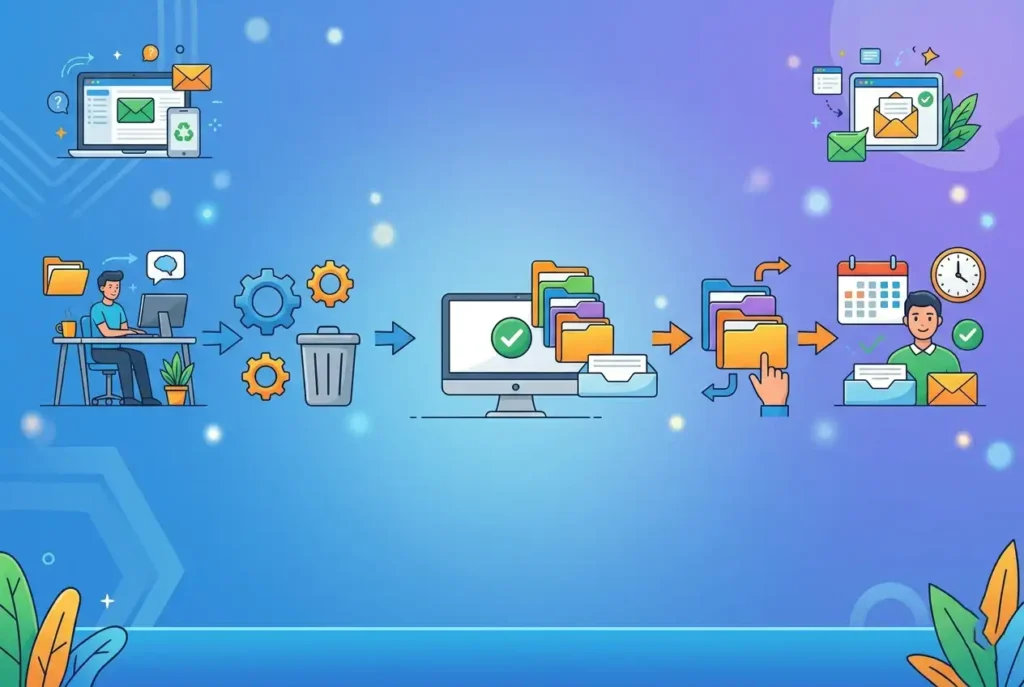
Inbox cleanup means removing unwanted emails in bulk, unsubscribing from mailing lists you no longer read, and setting up a simple system that stops new clutter from building up. Most people can reduce a 10,000-email inbox by 80 percent in under two hours using free tools built into Gmail, Outlook, Apple Mail, and Yahoo — no paid apps required.
Steps at a glance
- Delete all marketing emails using the unsubscribe search
- Delete all notification emails using keyword searches
- Clear emails older than 12 months by sorting by sender
- Move what remains into three simple folders
- Empty Sent, Trash, and Spam
- Search for and delete large-attachment emails
- Set up three weekly habits to prevent clutter from returning
Your inbox is not a filing cabinet. It was never meant to store 14,000 emails.
Most people treat it like one anyway. They let messages pile up until opening their email feels like walking into a room full of things they need to deal with — and then immediately closing the door.
The average person has more than 1,000 unread emails sitting in their inbox right now, according to research by AllAboutCookies. About 40 percent of people have more than 50 unread messages they have not touched in months. And the average office worker receives 121 new emails every day, consuming up to 28 percent of the working week, according to McKinsey Global Institute.
This guide helps you clean it all out — then keeps it clean.
No paid tools. No subscriptions. Just a clear process you can start in the next ten minutes.
What fills most inboxes?
Three types of email make up the bulk of inbox clutter:
Marketing emails and newsletters you signed up for once and never read. One active online shopping account generates 2 to 5 promotional emails per week. After two years, that is over 500 emails from a single retailer.
Notification emails from apps, social networks, and platforms — things like “You have a new follower,” “Your order has shipped,” and “Someone commented on your post.” One active social media account can generate over 300 notification emails per month.
Old conversations you kept “just in case.” Most contain information you either already acted on or will never need again.
The third group is the hardest to delete because it feels risky. Start with the first two — they make up roughly 70 to 80 percent of a typical inbox.
What is the fastest way to delete marketing emails?
The fastest way to delete marketing emails is to type the word “unsubscribe” into your email search bar, select all results, and delete them in one action.
Every marketing email, newsletter, and promotional message you have ever received contains the word “unsubscribe” — usually in small text at the bottom. UK and EU law under GDPR requires it. US law under the CAN-SPAM Act requires it. This one search pulls every promotional email you have ever received into a single list.
On Gmail: Type unsubscribe in the search bar. Click the checkbox to select all results on the page, then click “Select all conversations that match this search.” Click Delete.
On Outlook: Type unsubscribe in the search bar. Press Ctrl+A to select all results. Press Delete.
On iPhone Mail: Type unsubscribe in the search bar. Tap Edit, then Select All, then Trash.
On Yahoo Mail: Type unsubscribe in the search bar. Click the checkbox to select all, then click Move to Trash.
A typical inbox contains between 2,000 and 8,000 marketing emails. This step removes 60 to 80 percent of most people’s total unread count in under five minutes.
After deleting them, use Gmail’s Manage Subscriptions tool to unsubscribe from senders you never want to hear from again. Gmail launched this feature in July 2025. It lists your most frequent promotional senders in one place so you can unsubscribe from the noisiest ones first, without opening each email individually.
How do you get rid of notification emails quickly?
Get rid of notification emails by searching for the words “notification,” “alert,” “no-reply,” and “noreply” — one at a time — then deleting all results.
These searches pull in automated messages from every app and platform that has ever emailed you: delivery tracking, social networks, password reset confirmations, app updates, and booking reminders.
Run each search separately and delete all results. None of these emails contain information worth keeping. If you needed to act on any of them, you already did. If you did not, it is too late regardless.
After you clear them, go into the settings of your most active apps and turn off non-essential email notifications at the source. Keep important ones — receipts, booking confirmations, genuine security alerts — and turn off everything else. This prevents the same clutter from rebuilding over the next few months.
How do you clean up old emails without reading every one?
Clean up old emails by sorting your inbox by sender, which groups all emails from the same person or company together — then delete entire groups at once instead of reading individual messages.
Go through each group and ask one question: did I act on this, and will I ever realistically need to refer back to it? If you replied and handled it, delete the thread. If the email contains a receipt, booking confirmation, or document you need later, move it to a folder first. Delete everything else.
Most people find that over 90 percent of emails they kept “just in case” have not been opened since the day they arrived.
If you have emails from 2022 or earlier that you cannot face sorting, use Gmail’s search operator before:2023/01/01 to select all of them at once and archive the entire batch. They stay searchable if you ever need to find something, but they leave your inbox immediately.
What folders do you actually need?
You only need three folders to organise the emails that remain after a cleanup.
- Action — emails that need a reply or a task you have not completed yet
- Reference — receipts, booking confirmations, documents, and threads you might need to find again
- Archive — everything else you want to keep but do not need to access quickly
Do not create sub-folders yet. Research from the University of California, Irvine found that people with simple flat folder structures retrieved emails just as fast as people with complex nested systems — and spent significantly less time maintaining them. A three-folder system handles 95 percent of what most people actually look for.
Move each remaining email into one of these three folders. Your inbox should now be empty or close to it.
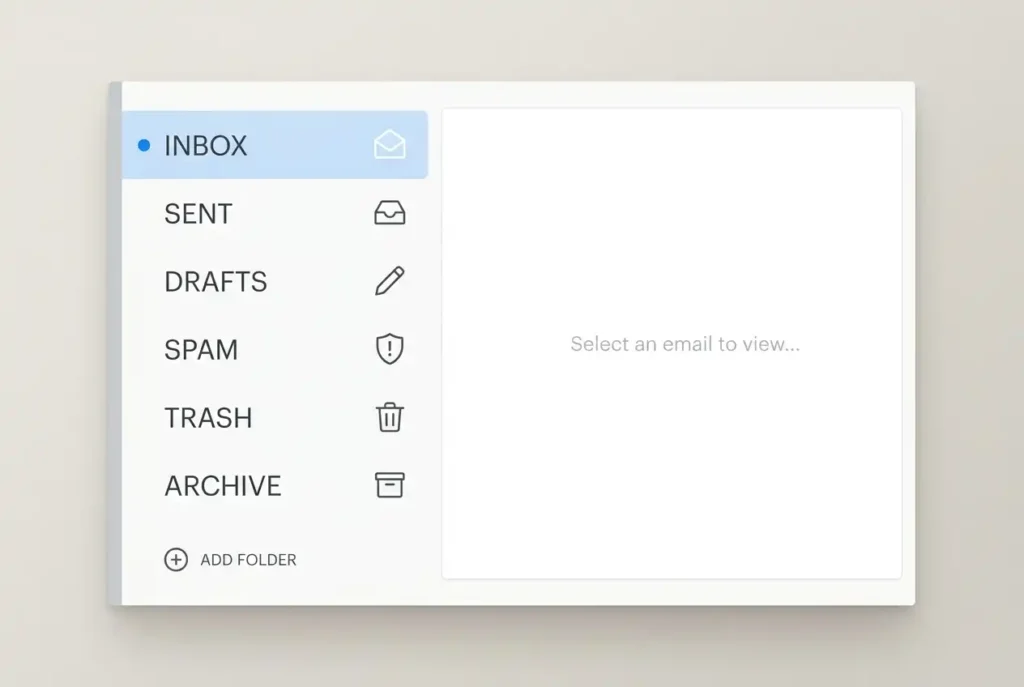
Clear your Sent folder, Trash, and Spam
Most people clean their inbox and forget these three folders. They hold thousands of emails and use the same amount of storage as your main inbox.
Open your Sent folder. Select all emails older than six months and delete them. If you ever need to find a specific sent email, you can search by the recipient’s name rather than scrolling through the folder.
Open Trash or Deleted Items. On Gmail, deleted emails sit in Trash for 30 days before disappearing permanently — they still count against your 15 GB Google storage limit the entire time. On Outlook, deleted items stay until you empty the folder manually. Empty both.
Open Spam or Junk and delete everything inside. Nothing in your spam folder is worth reading.
On Gmail, Sent, Trash, and Spam together often account for 30 to 40 percent of total account storage. Clearing them frees that space immediately.
Step 6: Delete the emails taking up the most storage
Some emails occupy far more space than others. A single email with a 20 MB presentation attached takes up the same storage as approximately 4,000 plain text messages.
On Gmail: Type has:attachment larger:5mb in the search bar. This lists every email with a large attachment. Check each one. If you do not need the file, delete the email. If you want to keep the file, save it to Google Drive or your computer first, then delete the email.
On Outlook: Click the View tab, then Sort By Size. Your largest emails appear at the top.
On Apple Mail: Go to Mailbox → Erase Deleted Items, then use the search bar filtered by attachments.
One sweep of this search typically frees several gigabytes from accounts that have never been cleaned before.
How do you keep your inbox clean after you organise it?
Keep your inbox clean by unsubscribing immediately when you see an unwanted email, processing each email as soon as you open it, and running the unsubscribe search once a month.
Three habits maintain a clean inbox with about ten minutes of effort per week:
Unsubscribe the moment you notice an email you do not want. Do not delete it and move on — click unsubscribe before you close it. The CAN-SPAM Act requires US-based senders to remove you within ten business days. Most reputable senders act within 24 hours.
Process every email you open, right then. Reply, delete, move to a folder, or forward it — but do not leave it in your inbox as a reminder. Inboxes are poor reminder systems. Use your phone’s calendar or a notes app for that instead.
Run the unsubscribe search once a month. Type “unsubscribe” into your inbox, select all results, and delete them. This catches any new marketing emails that arrived since your last clean. The whole process takes under two minutes once your inbox is already organised.
Why does a full inbox affect how you feel?
A full inbox creates a specific kind of mental weight that an empty one does not.
In a 2012 study at the University of California, Irvine, Professor Gloria Mark found that workers who removed email from their daily routine multitasked less, felt less stressed, and maintained more consistent heart rates throughout the day. Her team attached heart rate monitors to participants and measured focus using software that tracked window-switching behaviour. People with email switched application windows an average of 37 times per hour — nearly every two minutes.
The same research found that after a single interruption, it takes an average of 23 minutes and 15 seconds to return to the original task with full focus. An inbox with thousands of unread messages creates a background awareness of incompleteness — not dramatically stressful, but constantly present.
Clearing it removes that background noise. Most people notice the difference within a day.
Platform-specific guides
Every major email platform works slightly differently for bulk selection, deletion, and folder management.
- How to delete all emails in Gmail at once →
- How to delete all emails on your iPhone in minutes →
- How to delete all Yahoo emails at once →
- How to unsubscribe from emails in Outlook →
- How to clean up Apple Mail on iPhone and Mac →
Frequently asked questions
What is the best way to clean out a Gmail inbox fast?
The best way to clean out a Gmail inbox fast is to type unsubscribe in the search bar, select all results, and delete them — then repeat with searches for “notification,” “alert,” and “no-reply.” This removes the bulk of most inboxes in under 15 minutes. For emails older than a specific date, use the search operator before:YYYY/MM/DD to select and delete entire date ranges at once.
How do I delete thousands of emails at once?
To delete thousands of emails at once in Gmail, type a search term in the search bar (such as “unsubscribe” or a sender name), click the checkbox to select all results on the page, then click “Select all conversations that match this search” — this selects every matching email in your entire inbox, not just the current page. Then click Delete. In Outlook, use the Search tab to find emails by keyword or date, press Ctrl+A to select all, then press Delete.
How do I get to inbox zero?
Inbox zero means processing every email so your inbox contains zero unread or unactioned messages. Reach it by first doing a bulk cleanup using the steps in this guide, then adopting the four-action rule: every email you open gets replied to, deleted, moved to a folder, or forwarded — never left in the inbox. Maintaining inbox zero takes roughly 10 minutes per day once the initial cleanup is complete.
Is it safe to delete all my old emails?
Yes, with two precautions. First, check that your deleted emails will go to Trash before they disappear permanently — Gmail keeps deleted emails for 30 days, and Outlook keeps them in Deleted Items until you empty it manually, giving you time to recover anything you regret deleting. Second, before deleting a large batch of old emails, do a quick search for specific things you know you might need — tax receipts, legal correspondence, account details — and move those to a Reference folder first.
Should I use an email cleaning app?
Email cleaning apps like Clean Email and Leave Me Alone do what this guide shows you how to do manually — they charge a monthly fee to automate it. For a one-time deep clean, you do not need them. The unsubscribe search and attachment search methods work just as well for free on any platform. If you want ongoing automated maintenance after your initial clean, Leave Me Alone’s credit-based pricing offers the most flexibility with no monthly commitment.
How often should I clean my email inbox?
Run a full inbox cleanup once or twice per year. Between cleanups, run the unsubscribe search once a month — it takes under two minutes and stops promotional emails from rebuilding. Process individual emails daily using the four-action rule: reply, delete, file, or forward. With those three habits, a full cleanup takes less than an hour when you do it.
Does cleaning your email actually reduce stress?
Yes. Research by Professor Gloria Mark at the University of California, Irvine found that removing email from workers’ routines measurably reduced stress — confirmed by heart rate monitors, not self-reporting. People with constant email access switched screens an average of 37 times per hour. Those without it stayed focused longer and reported feeling more capable of completing their work. A clean inbox reduces the background awareness of incompleteness that thousands of unread messages create.
How long does this take?
Under 5,000 emails: 1 to 2 hours, start to finish.
5,000 to 20,000 emails: 2 to 3 hours. Use the search-based deletion method rather than scrolling individually.
Over 20,000 emails: Split across two sessions. Do Steps 1 and 2 in the first session — the unsubscribe and notification searches alone remove the overwhelming majority. Finish the rest in a second sitting when the inbox feels more manageable.
Most people report a noticeable reduction in low-level stress after Step 1 alone. It takes five minutes and removes thousands of emails. Start there.
Next step: once your inbox is clean, set up a 10-minute weekly email reset routine → to keep it that way.
Also in this series: How to organise your inbox with folders and labels →
Sources
- Gmail Manage Subscriptions feature — Google Support
- CAN-SPAM Act compliance guide — FTC.gov
- Email and stress research — Professor Gloria Mark, UC Irvine
- A Pace Not Dictated by Electrons — Mark, Voida, Cardello, CHI 2012
- The Social Economy — McKinsey Global Institute
- Digital Clutter Statistics — AllAboutCookies.org
- GDPR and email marketing requirements — ICO.org.uk
- Leave Me Alone — unsubscribe tool