
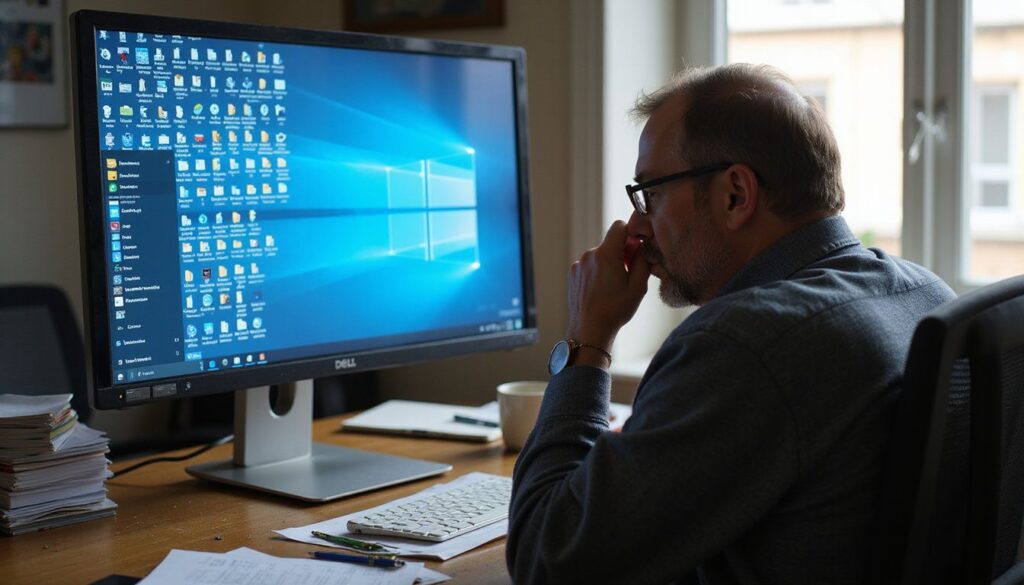
Half the icons on a busy Windows desktop are shortcuts. Deleting a shortcut removes a pointer and leaves the file. Deleting a real document on the Desktop can remove the only copy. Tell them apart before you tidy.
Sort the desktop into shortcuts and real files, move the real files to a proper folder, and pin the apps and folders you use to the taskbar or File Explorer. A clean desktop only helps if you can still find your work in two clicks.
Free tool: the file naming generator builds consistent names for the files you move off the desktop.
Check whether OneDrive owns your Desktop
Open File Explorer and click Desktop in the sidebar. If the address bar shows a path with OneDrive in it, OneDrive backs up your Desktop. Deleting a file there also deletes it from OneDrive and your other PCs. That is fine, but know it before a big cleanup.
Tell shortcuts from real files
- Look for the small arrow on the icon’s corner. That marks a shortcut.
- If unsure, right-click the icon and choose Properties. A shortcut has a Shortcut tab with an Open File Location button.
- Turn on file extensions so you can see what each file is: in File Explorer, View › Show › File name extensions.
Sort the desktop in one pass
- Right-click the desktop and choose Sort by › Item type. Shortcuts and file types group together.
- Make a folder on the desktop called Sort me (right-click › New › Folder).
- Drag every real document into Sort me.
- Delete shortcuts you no longer use. The apps stay installed.
- Now sort Sort me into your folders: current work into a project folder, keepers into reference, the rest to the Recycle Bin.
The folder system guide gives a four-folder structure (Inbox, Active, Reference, Archive) that works well here.
Replace desktop shortcuts with faster access
| You want quick access to | Use |
|---|---|
| An app you use daily | Search it in Start, right-click, Pin to taskbar |
| An app you use weekly | Right-click, Pin to Start |
| A project folder | Right-click it in File Explorer, Pin to Quick access |
| A file you open often | Start menu Recommended, or pin the folder that holds it |
Microsoft documents taskbar pinning and the File Explorer sidebar. Pinned folders appear in the File Explorer sidebar and in Save dialogs, which removes the reason to save to the Desktop.
Use the Desktop as a short-term tray
A few files on the desktop is fine if they are today’s work. A simple rule: anything on the desktop for more than a week goes into a folder during your weekly review.
To hide icons during screen sharing without moving anything, right-click the desktop and untick View › Show desktop icons. Tick it again to bring them back.
Sorting changes the view only
Sort by and Auto arrange icons change how icons are laid out. They do not file anything or free disk space. Avoid scripts or apps that move every file by extension into a “Documents/PDF” style folder: they split projects apart and make files harder to find.
Stop the pile from coming back
- Set your browser to ask where to save downloads, or review Downloads weekly with the Downloads cleanup guide.
- Name files so search finds them, using the file-naming system.
- In Save dialogs, choose a pinned project folder instead of Desktop.
If your drive is full rather than messy, use the Windows disk space guide.
Steps checked against Microsoft Support for Windows 11 in November 2026. Windows 10 uses similar menus with slightly different names.
Sources
- Microsoft Support: Customize the taskbar in Windows
- Microsoft Support: File Explorer in Windows