
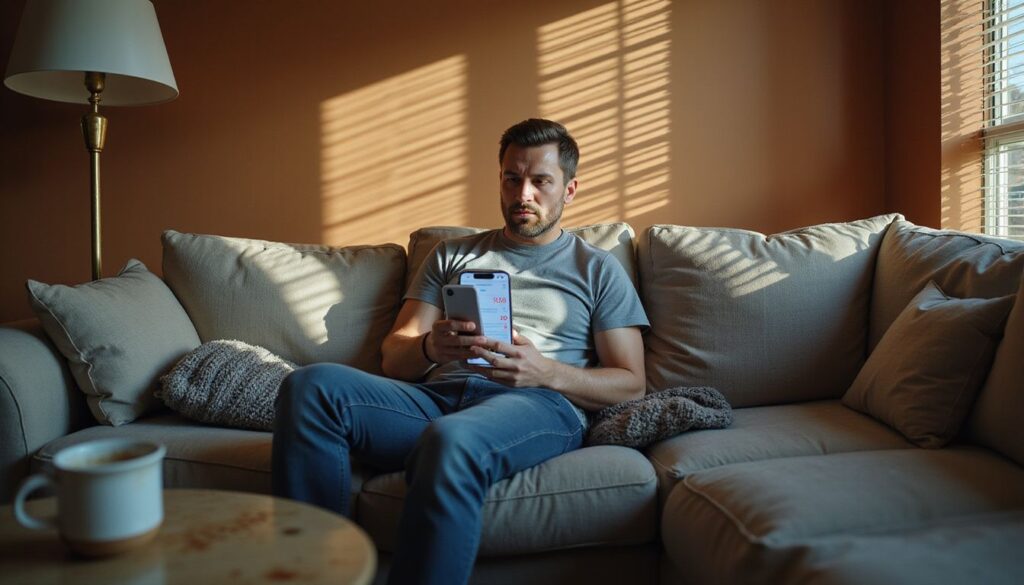
One shopping app buzzes about a sale, a game reminds you to collect a reward, and the message you were waiting for gets lost in the pile. Deleting the noisy apps works, but you lose the parts of them you actually use.
Turn notifications off for one app in Settings, or keep the useful ones and silence the rest. On iPhone, go to Settings › Notifications, tap the app and switch off Allow Notifications. On Android, go to Settings › Notifications › App notifications, tap the app and turn it off, or turn off just the categories you do not want. The app and its data stay on the phone.
The fastest route: from the notification itself
When the next unwanted alert arrives, use it to fix the setting:
- iPhone: swipe left on the notification, tap Options, then Turn Off. You can also choose Mute for 1 Hour or Mute for Today (Apple).
- Android: touch and hold the notification. You can turn the app’s notifications off there, switch it to Silent, or tap the settings icon to choose categories (Google).
Choose the smallest change that solves it
Turning everything off is rarely the best fix. Pick the row that matches the problem:
| Problem | iPhone | Android |
|---|---|---|
| You never want this app’s alerts | Allow Notifications off | App notifications off |
| You want delivery updates but not promotions | Customize Notifications where the app offers it, or the app’s own settings | Turn off individual categories |
| The sound is the problem | Sounds off, alert stays | Set to Silent |
| Alerts show private text on the lock screen | Show Previews › When Unlocked | Notifications on lock screen › hide sensitive content |
| Alerts are fine, just not all day | Scheduled Summary | Snooze, or a Mode with allowed apps |
| You need quiet for a set time | A Focus | Do Not Disturb or another Mode |
iPhone: settings step by step
- Open Settings › Notifications.
- Under Notification Style, tap the app.
- Choose one of the options below.
- Turn off Allow Notifications to stop them completely.
- Under Alerts, untick Lock Screen, Notification Center or Banners to change where they appear.
- Turn off Sounds or Badges to keep the alert but lose the noise or red number.
- Tap Customize Notifications, if shown, to pick which types the app may send.
- Some apps show a link at the bottom to their own notification settings, which often has finer controls.
Apple documents every option on its notification settings page.
Batch the rest with Scheduled Summary
Settings › Notifications › Scheduled Summary collects non-urgent alerts and delivers them together at times you set, such as 8 am and 6 pm. Turn it on, choose the times, then pick the apps under A to Z. Shopping, news and social apps are good candidates; messages and calendars usually are not.
Android: settings step by step
- Open Settings › Notifications › App notifications. On some phones it is Settings › Apps › the app › Notifications.
- Tap the dropdown and choose All apps if the app is not listed under Most recent.
- Tap the app.
- Turn the main switch off, or scroll to the categories and switch off only the ones you do not want. A shopping app might separate promotions from order updates, for example.
- Tap a category to choose between Default (alerting) and Silent.
Newer Android versions can also slow repeated alerts from one app with Notification cooldown (Settings › Notifications › Notification cooldown) where the phone supports it.
Keep the alerts that matter
Some notifications are worth keeping even when they annoy you:
- Security and sign-in alerts from your bank, email and password manager.
- Calendar and reminders you rely on for appointments.
- Delivery and travel updates on days you are expecting something.
- Health and care devices, such as glucose monitors or medication reminders.
- Government and emergency alerts, found at the bottom of the Notifications screen on iPhone and under Wireless emergency alerts on Android.
For these, change the sound or timing rather than switching them off.
If alerts keep coming
- Check which app sent it. Some alerts come from a website through your browser, not from an app. On iPhone, website alerts come from web apps added to the Home Screen and appear in Settings › Notifications under their name. On Android, open Chrome and go to its Settings › Notifications.
- Check other devices. A message app signed in on a tablet or watch can keep buzzing there.
- Check Focus or Mode settings. An app on a Focus’s allowed list can break through Do Not Disturb.
- Check the app’s own settings. Some apps send email or SMS alerts that phone settings do not control.
No cleaner app, root access or third-party “notification blocker” is needed for any of this.
Tidy the screen, too
If the real problem is too many icons rather than too many alerts, use the Home Screen guide, and the app review guide for apps you no longer need at all.
Steps checked against Apple and Google support pages in November 2026. Menu names vary by phone model and software version.
Sources
- Apple Support: Change notification settings on iPhone
- Apple Support: Use notifications on your iPhone or iPad
- Google: Control notifications on Android
- Pixel Phone Help: Turn app notifications on or off
- Google: Limit interruptions with modes and Do Not Disturb