
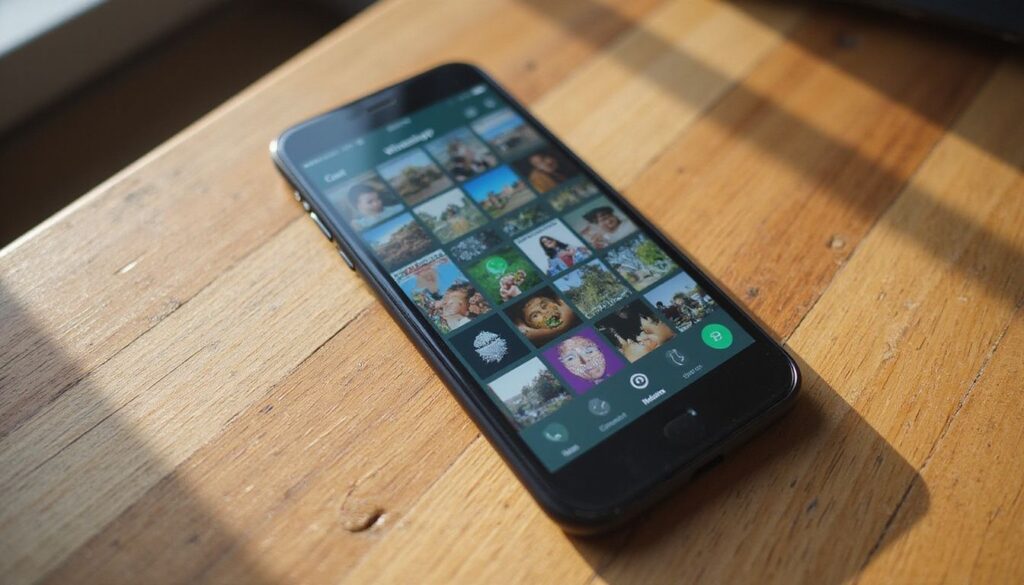
One busy family group can put gigabytes of videos, voice notes and forwarded images on your phone, and WhatsApp often saves a second copy of each into your photo gallery. Clearing the chat alone may not free the space you expect.
Open WhatsApp › Settings › Storage and data › Manage storage, start with Larger than 5 MB and the chats using the most space, and save anything you want before deleting. Then check your photo gallery for the copies WhatsApp saved there, and turn off automatic saving so the pile does not come back.
Free tool: the video storage calculator shows how much space your videos take at each camera setting and what switching settings would save.
WhatsApp media lives in three places
Deleting media inside WhatsApp removes it for you only; others in the chat still have it. If the same file was also saved to your gallery, that copy stays until you delete it too (WhatsApp).
Step 1: Clear media inside WhatsApp
- Open WhatsApp › Settings › Storage and data › Manage storage. The space WhatsApp uses on your phone is shown at the top.
- Tap Larger than 5 MB to see big files, or tap a chat to see its media largest first.
- Open anything you are unsure about. If you want to keep it, save or share it to a place you control and open it there.
- Select the items you do not need and tap the bin icon.
WhatsApp warns that media deleted this way cannot be downloaded again from the chat. To clear one chat’s media in bulk on Android, open the chat › More › Clear chat, choose Clear media files and untick anything you want to keep.
Step 2: Check your gallery for saved copies
| Phone | Where WhatsApp saves media |
|---|---|
| iPhone | The Photos app, when Save to Photos is on |
| Android | Gallery or Google Photos, in WhatsApp Images and WhatsApp Video folders |
Review those folders or albums and delete what you no longer need. If the gallery syncs to iCloud Photos or Google Photos, deleting there also removes the cloud copy.
Step 3: Stop automatic saving
- Android: Settings › Chats › Media visibility off stops new media appearing in your gallery. You can also change it per chat in Contact info or Group info (WhatsApp).
- iPhone: Settings › Chats › Save to Photos off.
- Both: Settings › Storage and data › Media auto-download controls what downloads on mobile data and Wi-Fi. Setting videos to Never or Wi-Fi keeps large clips off your phone until you tap them.
These settings change what happens next. They do not remove anything already saved.
Step 4: Look at your chat backup
Chat backups use cloud storage, not phone storage, but they decide whether you can get your chats back on a new phone.
- Check Settings › Chats › Chat backup for when the last backup ran and how big it is.
- Include videos makes backups much larger. Turning it off keeps future backups smaller.
- Never delete the only backup while you are changing phones or reinstalling. WhatsApp can restore only from the last successful backup (WhatsApp).
For a full Google Account, the Android cloud storage guide shows how to review a WhatsApp backup there. For iCloud, see the iCloud storage guide.
Keep what matters first
Before a big cleanup, save the photos, videos and documents you would hate to lose. Play saved videos with sound using the checks in the large video guide, and keep receipts or documents in your files, not only in a chat.
Check it worked
Reopen Manage storage and compare the figure at the top. Then check phone storage with the phone storage guide.
Steps checked against WhatsApp Help in November 2026. Menu names vary between iPhone and Android and between app versions.
Sources
- WhatsApp Help: How to free up storage on WhatsApp
- WhatsApp Help: How to stop WhatsApp from saving media to your phone
- WhatsApp Help: How to back up your chat history